How to Sign a PDF Without Printing It: Draw, Type or Upload a Signature
A step-by-step guide to signing a PDF in your browser: draw, type or upload a signature, place it on any page, then flatten and lock the signed file before you send it.
NewKitApp 14 min read
The ritual is familiar: someone emails you a contract, you print the last page, sign it with a pen, scan the whole thing back in, and email a blurry PDF that now looks nothing like the original. If you do not own a printer, the ritual involves a trip to an office supply store. All of this to place a picture of your name on a document.
You do not need any of it. A signature on a PDF is, for the overwhelming majority of everyday documents, an image placed on a page. Your browser can create that image, position it precisely, and produce the signed file in under a minute, with the document never leaving your device. This guide walks through the entire process step by step: creating a signature you are happy with, placing it exactly where the document asks for it, handling initials, dates and multiple signers, and locking the finished file so it survives being emailed back and forth.
Prefer watching? Here is the video demo
A visual tool is quicker to understand in motion. This official NewKitApp demo, just under four minutes, runs the whole workflow in the browser with a real file: a PDF dropped into the page, compressed, merged, signed, then downloaded, with no upload to any server and no account anywhere. The signing segment, from drawing the signature to dragging it onto the page, is exactly the flow described in the steps below, so you can watch it first and follow along after.
The video plays straight from this page. If your reader or browser blocks embedded videos, the same demo is on YouTube: Compress, Merge & Sign PDFs Free.
What you need before you sign
Three things, and you probably have all of them:
- The PDF on your device. Download it from the email or portal first. Signing works on any PDF: a text document, a scanned contract, a filled government form.
- A browser. Everything happens locally in the page. There is no account, no app to install, and no upload: the file is read in your browser and the signed copy is generated on your machine.
- A way to make the signature. A finger or stylus on a phone, a mouse or trackpad on a computer, or a photo of your signature on white paper. If you have a pen and one sheet of paper, you have the best option of the three.
One question to settle before you start: does the recipient want an electronic signature, which is a visible mark of agreement, or a certificate-based digital signature, which is a cryptographic seal verified against an official certificate? Everything in this guide produces the first kind. That covers contracts, offers, NDAs, school forms and internal approvals in daily practice. If a government portal or a bank explicitly demands a certified digital signature, an image will not satisfy it; the article on electronic vs digital signatures explains that path in detail.
Signing a PDF in the browser, step by step
The steps below use Sign PDF. The tool has one screen, and the whole flow is: create the signature, place it, download.
- Open the tool and choose your file. Drag the PDF in or click to browse. The first page renders in the middle of the screen. Your file is opened in the browser itself; nothing is transmitted anywhere.
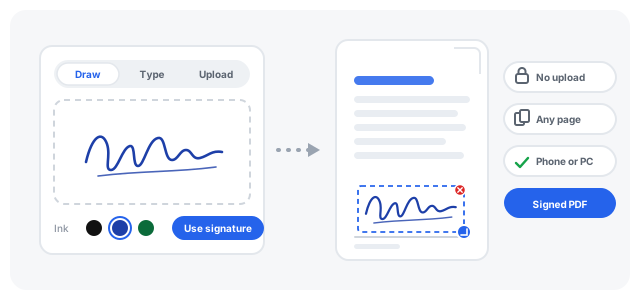
- Create your signature. The panel beside the page shows three tabs: Draw, Type and Upload. Draw opens a small canvas. Pick an ink color: black, blue or green. Draw your signature with the mouse, or with a finger if you are on a phone. Press Use this signature when it looks right. (The other two tabs are covered below; they exist because not everyone wants to draw.)
- Position the signature. The moment you create it, the signature appears on the current page near the bottom right, inside a dashed selection box. Drag the box to move the signature anywhere on the page, including onto a printed signature line.
- Resize it. Grab the round handle in the bottom right corner of the selection box and drag. The signature scales proportionally, so it never stretches out of shape. Signatures look best when they are slightly wider than the printed line they sit on.
- Sign more pages if needed. Use the page arrows under the document preview to move to another page, then press Add to page. The same signature drops onto that page in its own selection box. Each placement is independent: drag and resize them separately. To remove one, click the small x button at the corner of its box.
- Press the sign button. The button reads Sign PDF and shows the number of placements, so you can confirm nothing was missed. The signed file is generated in your browser.
- Download the result. The download keeps your original file name and adds a suffix:
contract.pdfbecomescontract-signed. Rename it if the recipient asks for a specific file name. - Check it once before sending. Open the signed copy and look at every page where you placed a signature. Ten seconds here prevents the classic mistake of the perfectly signed page plus one unsigned page the counterparty notices first.
If something goes wrong midway, a misplaced placement for example, fix it before downloading: every placement can be dragged, resized or deleted until the moment you press the sign button. If you want a different signature entirely, press Redo and the drawing pad returns.
Draw, type or upload: picking the right method
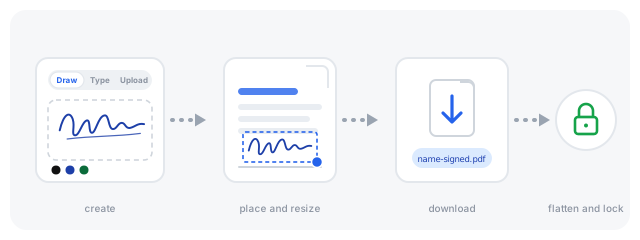
The three tabs exist because the best method depends on what you have available and how much you care about the signature looking like your hand. Whichever you choose, the rest of the flow is identical: place the result on the page, download the signed file, then flatten and lock it.
Drawing your signature
Drawing is the most direct route and needs no preparation. A few habits make drawn signatures look better:
- Draw larger than you need, then scale down. Small strokes drawn with a mouse come out shaky. A large, slow stroke reduced to the size of a signature line looks confident.
- Prefer a phone. A finger on a phone screen produces a far more natural stroke than a mouse on a desk. You can create the signature on your phone, sign, and send the file from there.
- Slow down. The stroke thins when you move fast and thickens when you move slowly, like a real pen. Deliberate strokes read as a deliberate signature.
- Consider blue ink. Blue separates your signed original visually from black-and-white photocopies of it, which matters more than people expect when disputes about "which copy is the original" appear months later.
Typing your name
The Type tab renders your name in handwriting styles. It is the fastest option, useful when a phone or a photo is not at hand and the document just needs a clean, visible mark. Type your name, pick the style and ink, and use it like any other signature.
A typed signature carries the same legal weight as a drawn one in everyday practice, because what matters is the intent and the surrounding evidence, not the curve of the strokes. It does look typed at full size, so for documents where presentation counts, like a job offer or a client contract, draw or upload instead.
Uploading a photo of your signature
This produces the most authentic result: your actual signature, as you write it.
- Sign on plain white paper, larger than usual, with a pen that gives a solid line.
- Photograph it in daylight, holding the phone parallel to the paper, so the paper fills the frame without shadows. A scan is even better if you have one.
- Open the Upload tab and drop the photo in. PNG, JPG and WebP all work. The tool finds the near-white paper pixels and makes them transparent, so only the ink lands on the page, and it trims the empty margins around the signature automatically.
The result is a signature that is genuinely yours, placed with none of the print-sign-scan ceremony. One tip: sign the paper a few times and photograph the best attempt. You get infinite attempts, which real paper does not offer.
Signing on a phone
Most people sign on the move, and the phone is arguably the better device for it, because a finger is a decent pen.
Open the PDF from your email or files app so it is downloaded, then open Sign PDF in the browser and pick the file. Turn the phone sideways for a wider drawing area. Draw with a fingertip, position the signature with one finger, and resize with the corner handle. Download and attach the signed file to your reply.
The signature exists only inside that browser tab. It is not saved to the phone, not added to any account, and gone when the tab closes. If you sign documents often, keep the photo of your signature in your photo library so the upload route takes seconds next time.
Initials, extra pages and multiple signers
Real documents ask for more than one mark. Three situations cover almost everything:
Initials on every page. Contracts often require a small initial at the foot of each page. Create your signature once, then use the page arrows and Add to page on each page, resizing each placement down to initial size. A tidy trick for initials specifically: on the Type tab, type only your initials and choose a style; a two-letter typed initial looks neater than a shrunk full signature.
Several signatures on one page. Nothing limits you to one placement per page. A buyer and seller line on the same page, a supervisor and an employee, a witness: place your signature on your line, and leave the other lines for the other parties.
Multiple signers. Signing is sequential in practice: you sign, send the signed file, the next person signs the file you sent, and so on. Everyone can use the same tool on the same file. The counterparty simply opens the PDF you sent them, adds their signature next to yours, and downloads again. Keep your own copy of the version you sent, which brings us to protection.
Adding the date next to your signature
Many forms ask for a signature and a date. The signature tool places images, so the date needs one of three easy routes:
- Fillable form field. If the PDF is an interactive form with a date field, type the date into the field in any PDF reader before you sign, exactly as you would on paper. The guide to filling and flattening PDF forms covers this in detail.
- A second pass with the Type tab. Sign and download first. Reopen the signed file in the tool, switch to Type, and type the date. It lands as a placement like any other; position it next to your signature and download again. Two minutes, no printer.
- Small text via watermark. Watermark PDF can place small text at an exact position, which suits a date line on a fixed spot across pages.
Whichever route you take, do the date before the final flatten, so everything ends up baked into the page together.
After you sign: locking the file down
An image signature does not prevent later edits; it only marks your agreement. Three habits make tampering obvious instead of invisible:
- Flatten the signed file. Flatten PDF with the whole page option turns each page into an image, merging your signature into the page itself. After that, the signature cannot be selected, moved or deleted as a separate object, in any PDF editor, by anyone. This is the single most worthwhile step and takes one click.
- Encrypt it. Protect PDF adds an AES-256 password and lets you untick "Allow editing and form filling", so casual modification is blocked outright. Send the password through a different channel than the document itself, a text message rather than the same email. The full walkthrough is in how to password protect a PDF.
- Keep the copy you sent. Store the signed, flattened file and the email you sent it with. If a dispute ever arises about what was agreed, your copy plus the sending email is the evidence trail. When a "signed" copy comes back with changes, run both files through Compare PDF and every difference is highlighted; the technique is described in comparing two versions of a contract.
One more small thing before you send a signed file onward: PDFs carry metadata such as the author name and software from whatever produced them. If the document is going outside your circle, Edit PDF Metadata shows and clears those fields in seconds.
When an image signature is not enough
None of the steps above produce a cryptographic signature. If the recipient is a government portal that verifies certificates, a bank, or a tender that says "digitally signed by an authorized signatory", they mean the certificate-based kind, and an image will be rejected or, worse, silently ignored.
The rule of thumb: when a digital signature is required, it must be the last step. Every other operation, merging, compressing, page numbering, watermarking, invalidates it. Do all the ordinary PDF work first, sign with your certificate last, and touch nothing afterwards. The detailed comparison of the two signature worlds, including the legal tiers in the EU, the US and Indonesia, is in electronic vs digital signatures.
Troubleshooting common problems
My drawn signature looks shaky. Draw it large and slow, then shrink the placement. Or switch to the phone, where a finger stroke is steadier than a mouse. Or fall back to the upload route, which uses your real signature.
My uploaded photo has a grey box around it. The white-removal step makes near-white pixels transparent. Shadows, beige paper and dim indoor light leave pixels that are not near-white. Re-photograph in daylight on plain white paper, or adjust the photo's brightness before uploading.
The signature is the wrong size for the line. Drag the round corner handle. The proportions stay locked, so wide signatures stay wide. When in doubt, make the signature slightly wider than the printed line.
I signed the wrong page. Before downloading, click the x on the placement's box and add it again on the right page. After downloading, start over from the unsigned original; never try to cover a wrong signature with a second image, because the first one is still in the file underneath the second.
The PDF is a scan. Scans are images, and image signatures sit on top of them perfectly. If the scan itself needs work first, for example straightening pages photographed at an angle, the technique is in how to scan documents with your phone.
The PDF refuses to open in the tool. It is almost certainly password protected. Unlock PDF with the password produces an open copy you can sign.
The form has a signature field that says "sign here". Interactive signature fields expect certified signatures from inside a reader. For everyday electronic signing, place your image signature directly over the field, then flatten the file so the image and the field become one page. Recipients almost never object; the visible result is identical.
Questions that come up
Is signing this way legally valid? For ordinary contracts and forms, yes, in most jurisdictions including the US under ESIGN and Indonesia under the ITE Law, as long as the other party accepts an electronic signature and the evidence links the signature to you. Documents that traditionally exclude electronic signing include wills, property deeds and some court filings. The details are in the signature types guide.
Is my document uploaded anywhere? No. The tool runs entirely in your browser. The PDF is read locally, the signature is drawn locally, and the signed file is generated locally. Nothing is transmitted, and nothing is stored on any server.
Is my signature saved for next time? No, and that is deliberate. The signature lives only in the open tab and disappears when it closes. If you want a reusable signature, photograph it once and keep the photo; the upload tab turns it into a placement in a few seconds.
Can the other party tell it was signed this way? The visible page looks exactly like a printed-and-scanned signature, usually cleaner. The file's metadata shows the software that last processed it, which is true of every PDF tool on earth, and can be reviewed with the metadata editor mentioned above.
Why does the downloaded file have a suffix in its name? Signed downloads keep the original name plus a short suffix identifying where they were made, so the signed copy is never confused with the unsigned original in a downloads folder. Rename the file freely; the signature is inside the pages, not the file name.
Can I sign a document that others have already signed? Yes. Open the file you received, add your placement wherever your line is, and download. Their signatures are part of the pages already.
What is the difference between what I did here and "signing" in an email reply? An image on the document is attached to the document, visible to anyone who opens the file later, independent of the mail thread. A typed name in an email body is evidence in the thread, but the PDF itself carries no mark. Doing both is normal and strengthens your position.
Start to finish in one minute
Open the tool, draw or upload, drag, download, send. The print-sign-scan era lasted long enough. For your next signature, keep the pen in the drawer: open Sign PDF, and if the document matters, spend one extra click on Flatten PDF so what you signed is what stays signed.