How to Save a Web Page as a PDF (the Whole Page, Not a Screenshot)
Browser print cuts off lazy-loaded content and breaks layouts. Here is how full-page web-to-PDF capture works and when to pick PDF or PNG.
NewKitApp 9 min read
Everyone can print a web page to PDF: open the menu, choose Print, select "Save as PDF". It is free, it is built in, and about half the time it produces something disappointing: a single column of half-loaded images, a cookie banner stretched across the first page, sections that never rendered because they were waiting for you to scroll. The page you wanted to keep and the page your browser printed are two different documents.
The gap between those two documents is what this guide is about. Modern pages are programs, not paper: they load content as you scroll, reshape themselves to the window, and keep animating after "loaded". Saving them faithfully needs a slightly different approach than the print dialog, and knowing which approach to pick, and when, is the difference between an archive you can trust and a screenshot-shaped lie.
Why print-to-PDF keeps disappointing
The print dialog asks the page to re-layout itself for paper using print CSS, at a fixed width, with images requested but not always waited for. Three things go wrong:
Lazy loading. Pages defer everything below the fold: images, comments, tables, charts. Print tries to include them, but the browser will not wait forever, so whatever had not loaded by print time becomes a blank box. On long articles, the bottom half of the printout can be mostly empty even though the page looks perfect on screen.
Dynamic layout. Pages choose layouts for screen widths, not paper widths. Printed, a three-column dashboard collapses unpredictably, menus expand into pages of links, and fixed headers stamp themselves over the first lines of every page. The result is readable-ish, but it is a mangled copy, not the page.
Interactive state. Cookie banners, "subscribe" modals, chat widgets and consent overlays render as ordinary page content. The printed document dutifully includes a full-page grey overlay and hides the article you actually wanted behind it.
None of this is the print dialog being lazy; printing was designed for documents that already existed, not for pages that assemble themselves.
What full-page capture does differently
A proper web-to-PDF capture runs the page in a real browser environment, waits for it to settle, and then renders it exactly as a screen would: same styles, same images, same JavaScript-rendered charts. The Web to PDF tool works this way, and the difference in output is easy to summarize: what you saw is what you get.
The important behaviors happen before the render:
Waiting for the page to settle. The capture waits past the initial load event for network activity to quiet down, so late-arriving content (analytics-triggered sections, delayed embeds) is in place before the picture is taken.
Scrolling to trigger lazy content. Before capturing, the page is scrolled through so that every "load on approach" section actually loads. This is the single biggest fix for the half-empty printout problem: the capture process does the scrolling you would have had to do manually before printing.
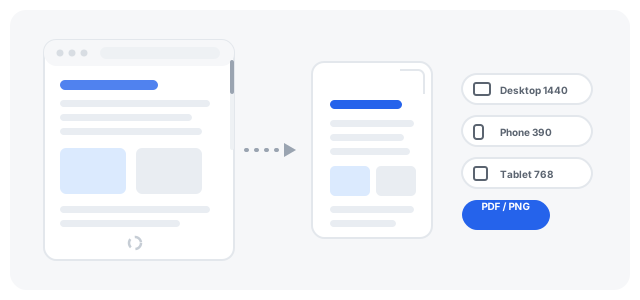
Rendering at a chosen device size. Because the capture renders like a screen, you can choose which screen: a desktop width, a laptop, a tablet, or a phone. The PDF you get is the page as that device sees it, which matters more than people expect (more on that below).
Picking the output format deliberately. The same capture can produce a PDF, which is paginated, searchable and printable, or a PNG, which is one long image of the entire page. They serve different jobs, and choosing wrong makes more work later.
PDF or PNG: pick before you capture
Choose PDF when the page is a document. Articles, documentation, blog posts, terms of service, recipes, invoices, order confirmations, boarding passes. PDF keeps the text selectable and searchable, splits into pages you can print or annotate, and stays a reasonable size. You can Merge PDF several captures into one reference file later, Compress PDF oversized results, or lock sensitive ones with Protect PDF.
Choose PNG when the page is a picture. Dashboards, design references, maps, anything where pixel-exact appearance is the point and nobody will ever search the text. A full-page PNG is also the honest choice when you need visual proof of what a page looked like at a moment in time, because one long image cannot be confused with an editable document.
A quick test: would you ever want to copy a paragraph out of it? Yes, take PDF. Is the layout itself the content? Take PNG. When you genuinely need both, capture twice; it is the same URL either way.
Device size is a real decision
Because capture renders the page as a screen of your choosing, the width you pick changes the document you get:
- Desktop (1440 pixels wide) reproduces the full layout: sidebars, wide tables, multi-column text. Best for archiving how a site actually looked and for pages whose content lives in wide tables.
- Laptop (1280) is the same idea slightly narrower, and often produces cleaner line lengths for long articles.
- Tablet (768) collapses sidebars and gives a single reading column with images at medium size. Frequently the nicest reading copy of a long article.
- Phone (390) captures the mobile experience: hamburger menus stay closed, content stacks vertically, mobile-only layouts appear. This is the one to use when you are checking how a page behaves for mobile users, or capturing a page that serves a better mobile version.
- Custom lets you set any width and height, for pages with responsive breakpoints you want to pin exactly.
If you only ever pick one, pick desktop for archives and phone for anything you are capturing to show someone the mobile experience. The differences are not cosmetic: the same URL at two widths can be two different documents with different content visible.
Capturing a page, step by step
Using the Web to PDF tool:
- Paste the URL. Only the address is sent for rendering; your files are not involved.
- Pick the device size (or custom dimensions) and the output format.
- Choose the mode. Fast skips waiting for slow below-the-fold content and captures in seconds, which suits simple pages. Complete waits and scrolls for lazily loaded sections and lets you fine-tune waiting and sharpness, which suits long pages and anything that builds itself as you scroll.
- Run the capture and watch the progress stages. Rendering a heavy page in a real browser takes a moment; the stage indicator tells you whether it is still loading, waiting for dynamic content, or capturing.
- Check the preview, then download. PNG previews scroll inside the page so you can eyeball the whole capture before saving.
Two practical notes. First, pages that block automated browsers or require login may fail or come back partial; the tool tells you when that happens rather than handing you a blank file. Second, very long pages produce very tall captures: PNG output stays one image, while PDF output paginates, which is usually what you want for printing.
The four ways to save a page, compared
The print dialog costs nothing and is always one menu away. It handles static pages well and respects print stylesheets when a site bothered to write one. It fails on lazy loading, includes overlay junk, and gives you no control over width. Keep it for quick, low-stakes prints.
Browser extensions can scroll-and-stitch the current tab into a long image. The stitching is imperfect on parallax sections and fixed headers, extensions need broad permissions to read every page you visit, and the output is an image: unsearchable, unselectable, awkward to print. Reasonable for quick visuals, a poor fit for archives.
Screenshot tools capture exactly what is on screen, which is exactly the problem: the viewport is not the page. Scrolling screenshots try to bridge it, with the same stitching seams as extensions.
A live-browser rendering tool sends only the URL, renders the page in a real browser at the size you choose, scrolls to trigger lazy content, and writes the result directly to PDF or PNG. Nothing is installed, no page-reading permission is granted to anything on your machine, and the output is a document, not a collage. This is the approach worth using whenever the capture matters.
A note on privacy that applies to all of them: check what leaves your machine. With the rendering approach, the URL you submit is the input, so treat it accordingly for pages with private identifiers in the address (tokens, session IDs). The tool does not see your files, cookies or logins; the page's own public content is all that renders.
Questions that come up
Why did my capture come out with a cookie banner in it? Pages render consent overlays for automated visits the same as for you. Re-running often lands after consent cookies are remembered by the page; otherwise, pages with hard walls stay walled, and the tool tells you the capture is partial rather than pretending otherwise.
Can I capture a page that needs a login? Not with a URL-only renderer, by design: it never has your credentials, so private pages stay private. For logged-in content, your own browser's print dialog or a screenshot remains the honest option.
The page changed after I captured it. Is my PDF wrong? It is a correct record of the moment you captured it. That is the point of archiving: your copy does not change when the web page does.
How big do captures get? Image-heavy pages produce large PDFs and very tall PNGs. Running the result through compression typically claws most of it back, and PNG captures of enormous pages are better converted to PDF if you plan to print.
The uses people actually keep coming back for
Paper trails. Order confirmations, booking pages, support threads, pricing pages before you buy. A PDF with the date you saved it beats a bookmark that rots when the page changes or disappears. For anything financially meaningful, Protect PDF the archive copy.
Research and clipping. Documentation and articles captured as searchable PDFs can be merged into a single project file, compressed, and searched offline months later when the original has moved.
Design and QA references. Capturing your own site at phone, tablet and desktop widths from one tool makes a quick visual record of a release: three PDFs, one URL, no screenshot stitching. The PNG route serves the same job when the team wants images for a slide deck.
Records of dynamic content. Pages behind "show more" buttons, infinite scrolls and tabs load their content during the capture scroll, so the saved document contains what a reader who scrolled everything would have seen, which is exactly the standard an archive should meet.
Keeping captures honest
A capture is a snapshot, and snapshots age. Three habits keep them trustworthy:
Include the capture date in your filename convention, because most PDFs remember their save date only in metadata you will never open. Keep the URL in your records: the tool's PDF output records the source in the document, but a simple "source" line in your notes never hurts. And re-capture anything you rely on professionally after the underlying page changes; a year-old capture of a pricing page is history, not evidence.
Finally, respect the content. Capturing a page for your own reading, records or review is what these tools are for; republishing someone's article as your own PDF is not. The same judgment you already apply to copy-paste applies to capture.
Where this sits in your toolkit
Print-to-PDF remains fine for the easy cases: a short static page, no lazy content, you just want it on paper. The moment a page loads as you scroll, hides behind a consent wall, or matters enough that the copy must be exact, that is when you render it in a live browser instead and get the page you actually saw. Pair the tool with PDF to Image when a workflow needs PNGs from your PDF archives, Merge PDF to consolidate a project's captures, and Compress PDF before emailing any of it. One URL in, one faithful document out, and no more blank halves.