Seven PDF Jobs You Didn't Know Your Browser Could Do
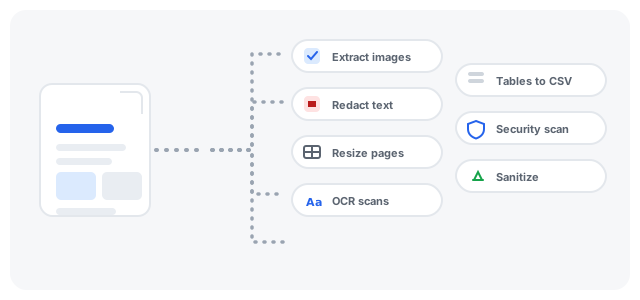
Extract images, real redaction, page resizing, OCR, tables to CSV, security scanning and sanitizing: seven browser PDF jobs that take under a minute.
NewKitApp 9 min read
Most people's PDF vocabulary is four verbs: open, print, sign, compress. The format supports far more, and over the past few years the whole category has quietly moved into the browser: no installs, no uploads to unknown servers, no watermarks on page one. What used to be a reason to buy desktop software is now a tab you close when you are done.
This is a tour of seven PDF jobs that most people either do not know exist or assume require special software. Each one takes under a minute on this site, runs entirely on your device, and solves a problem that actually comes up in normal work. Think of it as expanding your vocabulary.
A note on scope: this is not a list of exotic tricks for archivists. Every job below showed up this month in an ordinary office, and most of them showed up in an ordinary week. If you handle documents at all, you have probably met at least three of these problems already and solved them the slow way.
1. Pull every image out of a document
The situation: a 60-page report with a handful of diagrams you need for a presentation, or a photo from a scanned album you want back as a file. The slow way is screenshotting each one at whatever zoom you happened to be at, which loses quality and crops badly.
What the job actually needs is reading the PDF's internal image list. Every photo in a PDF is stored as a separate embedded object, and Extract PDF Images lists them all as a gallery of thumbnails with dimensions and sizes: you preview, pick the ones you want, and download exactly the original embedded image, at full quality, in its original format. No rescaling, no rounding corners off someone's chart.
The detail worth knowing: extracted images come out in whatever format they were stored in, usually JPEG or PNG, and small decorative icons are filtered out of the list so you are not scrolling through a hundred bullets and separator lines to find the three photos you came for.
2. Redact properly, not with a black rectangle
The situation: sharing a contract or bank statement with someone who needs most of it but must not see a few things. Almost everyone's first instinct is to draw a black box over the sensitive part in some editor. That first instinct is wrong in a dangerous way: the text under the box is still in the file. Anyone who copies and pastes, or opens the document in a text extractor, reads straight through your black box. Real redaction has to destroy the text, not cover it.
Redact PDF does the real thing: you type the words or numbers to remove, it finds every match across the document, and the pages carrying matches are rebuilt as images with the matches gone, so there is no text left to recover. Type the account number, get a document where the account number no longer exists.
Two habits make this bulletproof. Match case-insensitively and check the count of found items before applying, because numbers often appear in more places than you remembered. And after redacting, run the result through PDF to Text or your reader's search once: if the term is still findable, it is still there, and you will want to know that before the file leaves your machine.
3. Change the page size without re-creating the document
The situation: a file built for A4 needs to go on Letter paper for a US office, or a slide-format document needs to become A4 for the print shop, and re-exporting from the original application is not an option because there is no original application anymore.
Resize PDF rescales pages to a standard size, keeping proportions and orientation, so the content sits correctly on the new paper instead of being cropped or floating in a corner of white. It is one of those unglamorous jobs that desktop software has charged money for since the 1990s.
The detail worth knowing: resizing is not the same as cropping. Resizing keeps all the content and changes the canvas; if what you actually want is to cut margins or trim a page, that is the crop job, and doing the wrong one produces exactly the disappointment you would expect.
4. Make a scanned document searchable
The situation: a 40-page scan, one big image per page. You cannot search it, cannot copy a paragraph from it, and finding the one clause you need means scrolling and squinting.
OCR, optical character recognition, is the fix: the pages are rendered, the text on them is recognized, and out comes a document whose text is selectable and searchable. OCR PDF runs the recognition locally in your browser and supports the languages this site serves, plus German: pick the document's language before running, because recognizing English text as Spanish produces confidently wrong results.
When it is worth it: anything longer than a few pages that you will refer to more than once. Contracts, manuals, old reports, receipts at tax time. Searchability is the difference between an archive and a pile of pictures.
5. Get a table out of a PDF and into a spreadsheet
The situation: the data you need is in a PDF table, and your choices appear to be retyping it or asking the sender for the original file. Anyone who has retyped a 30-row table knows the specific joy of discovering a typo in row 29.
PDF to CSV reads the positioned text on each page, reconstructs rows and columns from the geometry, and writes a clean CSV that opens in any spreadsheet application. Numbers stay numbers, columns stay columns, and row 29 stays row 29.
The honest limits: it works on tables that are really tables, meaning text laid out on a grid. Scanned tables need the OCR step first, and designer-grade layouts where columns are faked with spaces and tabs reconstruct imperfectly. For the ordinary case, a financial statement or an inventory list, it is retyping's replacement.
6. Check a file before you trust it
The situation: a PDF arrived from somewhere you are not sure about, and opening it to take a look is exactly the wrong way to take a look.
PDF Security Checker scans the file's structure locally: embedded scripts, actions that fire on open, launch commands, executable attachments, flagged links, obfuscated names, structural oddities. Out comes a risk score with the evidence behind every finding, plus a SHA-256 hash for your records and a downloadable report. Nothing is executed, nothing is uploaded, and files the scanner cannot fully read, like password-protected ones, are reported as incomplete scans rather than fake clean results.
This job deserves to be as habitual as spell-check for anyone whose email receives attachments from the outside world. A full guide to what the scan looks for and how to read the findings lives in the PDF malware article.
7. Strip a document in one pass before it leaves
The situation: a document is going out the door, and it is carrying more than you intend: metadata with your name and software, revision history, scripts, old attachments.
Sanitize PDF removes what you choose in one pass, scripts, automatic actions, metadata, attachments, while the visible pages stay untouched. It is the finishing move after redaction, and the polite default before sharing anything that has passed through four pairs of hands and two companies. Pair it with Protect PDF when the recipient list is meant to be small: sanitize what the file says about itself, lock who can open it.
What all browser-based tools have in common
Every tool on this site shares a set of properties that used to be the opposite of what you got from a free web tool:
Files stay on your device. The work happens in your browser's own engine, in a background thread where needed. There is no upload step because there is no server doing the processing, which changes the calculus for confidential documents: contracts, medical records, legal drafts. The usual question, "do I trust this website with my file?", becomes "do I trust my own browser?", which you already do every day.
No accounts, no watermarks, no page quotas. Tools that process locally cannot meter you, so there is nothing to meter. The output is a clean file with the site's name in the filename and nothing stamped across the content.
Nothing to install or update. The tool is up to date every time you open the page. For one-off jobs, which is most PDF jobs, that beats a desktop install you will use twice a year and update never.
The quality is deterministic. Rasterizing a page, embedding a font, recognizing text: these produce the same output every run. When a job comes out wrong, it comes out wrong the same way twice, which makes problems fixable rather than lottery tickets.
When desktop software is still the right answer
None of this is a religion. Heavy batch processing of gigabytes at once, editing the actual text layout of a document, prepress work with color profiles and trapping, and legally-certified signing flows all still live in dedicated software, and reasonably so. The browser toolkit's sweet spot is the single file or the small batch: the one document in front of you, the job you need once, the machine that is not yours to install on.
There is also a middle habit worth adopting: doing the quick version first to learn what the job actually involves. Run OCR on two pages before committing to a 400-page batch. Resize one page and check the margins before resizing forty. The minute you spend previewing saves the hour you would spend undoing.
Quick answers
Are these tools really free? Yes, and not in the "twelve documents per month" sense. Local processing has no marginal cost, so there is no quota to enforce.
Do they work offline? The page needs to load once; after that the processing is local. For anything important on flaky connections, load the tools you need before you lose the signal.
What about very large files? Everything runs against the file in memory, so the practical ceiling is your device. A few hundred megabytes is comfortable on an ordinary laptop; the security scanner explicitly caps at 200 megabytes and says so rather than silently truncating.
Which order do these jobs go in? As a rule: clean first, then transform. Sanitize before you share, redact before you merge, OCR before you extract tables. Each step's output is the next step's input, and the order that ends with the least rework is the one that fixes content problems before structural ones.
The pattern behind all seven
None of these jobs required new ideas. They required noticing that a PDF is a structured container whose parts can be listed, inspected, rebuilt and removed, and that the whole toolkit fits comfortably inside a modern browser. That is the actual shift: the distance between "I have this file" and "the file is now what I need" collapsed from an install-and-learn cycle to a web search and sixty seconds.
It also means the jobs compose. A scan becomes searchable with OCR, its tables become a spreadsheet with the CSV extraction, its sensitive rows disappear with redaction, the result shrinks with compression, gets locked with a password, and the final file is checked before it goes out. Each tool does one thing, and the pipeline is whatever order your Tuesday requires. For pages that need to travel the whole distance, Merge PDF collects the pieces, and Compress PDF keeps the result emailable.
A closing suggestion for the next dull afternoon: open a document you know well and try two of these on it. Extract its images and count them against your expectations, or sanitize it and read the report of what was removed. Five minutes of that teaches you more about what PDFs actually are than any documentation, and every job on this list gets faster the moment you have seen the file's bones once.