How to Check a PDF for Viruses and Malware (Without Installing Anything)
PDFs are the most common malicious email attachment. Learn what hides inside a hostile PDF and check any file in your browser before opening it.
NewKitApp 10 min de lecture
Nos guides existent en anglais et en indonésien. Les articles ci-dessous s'ouvrent en anglais.
The most dangerous file in your inbox is probably not the executable with a weird name. It is the PDF. Invoice attachments, shipping notices, resumes, bank statements: PDFs look like documents, so people open them without thinking, and that reflex is exactly what attackers count on. Security research going back well over a decade keeps finding the same thing: a large share of malicious email attachments are PDFs, and the techniques inside them have barely changed since the late 2000s.
That is good news for you. Techniques that stay stable are techniques you can screen for, without being a malware analyst. This guide explains what actually hides inside a hostile PDF, what a scanner can and cannot see, and how to check a suspicious file yourself in about ten seconds, entirely in your browser.
Why PDFs carry more than text
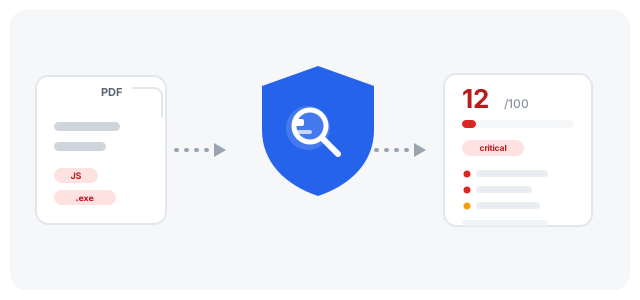
A PDF is not a flat picture of a document. It is a small program-like container: it can carry scripts, launch commands, attached files, remote links and multimedia, because the format was designed for interactive business documents, not just reading. Most of the time those features are dormant or harmless. Attackers only need them to work once.
The practical attack channels are well documented:
Embedded JavaScript. The PDF format supports JavaScript, and scripts can be wired to run the moment the file opens. A script can probe the reader application for known vulnerabilities, fetch a second-stage payload from a remote server, or quietly collect information about the machine and report it home. This is the single most common component of malicious PDFs.
Automatic actions. A dictionary entry called OpenAction tells the reader to do something as soon as the document is visible. Combined with a script, you get code that executes without a single click. Event hooks called additional actions can do the same when a page opens or closes.
Launch commands and dropped files. The nastiest chain works like this: a script extracts an attached executable to your disk, then a Launch command tries to run it, with a dialog text the attacker can partially rewrite to sound convincing ("this document is protected, click open to view"). Old, but it still catches people.
Links and data exfiltration. URI actions make clickable regions that open URLs. Combined with form-submit actions, a hostile document can send typed answers to a remote server. Look-alike domains, raw IP addresses and shortened links are the standard disguises.
Structural tricks. Older revisions of a document stay inside a file after incremental updates, data can sit after the official end-of-file marker where simpler scanners stop reading, and names can be written with hex escapes so the word JavaScript is spelled J#61vaScript and slips past naive keyword filters.
What "checking a PDF" actually means
No honest scanner tells you "this file is malware". What a static scanner does is read the file's structure without executing anything and compare it against the indicators that hostile PDFs reliably leave behind: script objects, automatic-action entries, launch commands, executable attachments, flagged URLs, and structural anomalies. Security engineers have used essentially this checklist for years with command-line triage tools; the indicators come from analyzing how real maldocs are built.
The output is a risk assessment, not a verdict:
- No suspicious indicators detected means exactly that: nothing on the checklist showed up. It is not a certificate of safety.
- Suspicious indicators found means something on the checklist is present, with the evidence attached so you can judge whether it makes sense for this document. A banking form legitimately contains a form; a one-page "invoice" containing an executable attachment does not get the benefit of the doubt.
- Scan incomplete means the scanner could not see everything, usually because the file is password-protected or damaged. An honest tool reports the gap instead of calling the file clean.
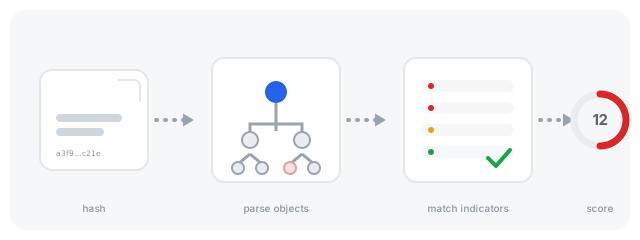
One point worth repeating: a proper scan parses the PDF's object structure, it does not just search the raw bytes for keywords. Scripts and attachments hidden inside compressed object streams are invisible to plain text search but plainly visible to an object parser. Good scanners do both, because the raw byte view catches obfuscation that the parser normalizes away.
Checking a PDF in your browser, step by step
You do not need to install anything or upload the file anywhere. The PDF Security Checker runs the whole scan locally:
- Open the tool and drop the file in. The file stays on your device; nothing is transmitted.
- Press the check button. The scan reads the object graph, extracts every URL, calculates a SHA-256 hash you can keep for reference, and returns a risk score from 0 to 100.
- Read the score next to the classification: low, medium, high or critical. The score is a weighted sum of the indicators found, not a probability that the file is malware.
- Work through the findings list. Each finding shows its severity, the technical evidence (a snippet of script code, the name of an attached file, the flagged URL) and a recommended next step.
- If anything risky turned up, copy the SHA-256 hash or download the JSON report for your records, then act on the finding before you open the file.
For a file you received by email, the context does half the work. An invoice from a supplier you actually do business with, arriving when you expect one, scoring clean? Open it. A "secured document" from an unknown sender, asking you to enable something, containing a script and an executable attachment? That file has told you everything you need to know.
A short history, so the threat makes sense
PDF malware is not a new idea. The wave that made it famous arrived around 2008 and 2009, when exploits targeting bugs in popular readers were packaged as emailed PDFs and drove emergency patch cycles for months. Vendors responded by sand boxing JavaScript, removing multimedia plugins and deprecating whole subsystems, and the exploit-focused era faded.
What did not fade was the delivery chain. Attackers realized they did not need a memory-corruption bug when the format itself ships with scripting, external launching and attachments. From the early 2010s onward, the dominant style became the social-engineering chain: an email that manufactures urgency, a PDF that carries a script or an attachment, and a final step where the victim is talked into running the payload themselves. Every element of that chain is visible to static analysis, which is why an indicator-based scan remains useful even against modern campaigns.
It also explains why the same few indicators keep showing up in threat reports year after year. The format has not grown new attack surface; attackers keep re-using the old surface because victims keep opening the files.
Reading findings like an analyst
The difference between a useful scan and an alarm box is interpretation. Some findings deserve a shrug; others end the conversation:
A form field warning on a government form. Interactive forms are how serious paperwork works. A form indicator with no scripts and no odd links is noise in your decision, not signal.
A plain HTTP link in a 2011 manual. Old documents point at old infrastructure. One non-HTTPS link is a sign of age, not malice. A dozen links where half point at raw IP addresses is a different story.
A script attached to document-open. This is the single finding with the least innocent explanations. Legitimate software rarely wires scripts to the open event. If the file also has an attachment with an executable extension, you are looking at the textbook dropper chain, and no amount of "but it looks like an invoice" saves it.
An embedded file named invoice.pdf.exe. Double extensions exist for one reason. The characters after the last dot are the only ones that matter.
Hex-escaped names. When the word JavaScript appears in the file as J#61vaScript, someone deliberately bypassed a keyword filter. There is no innocent reason for a document producer to do this.
Incremental updates on a file you received "final". Revisions are normal for documents edited in place, but they also mean the file contains older versions a scanner might read differently from what your reader displays. Worth understanding before trusting.
The scanner's severity colors encode exactly this reasoning: findings that almost always accompany legitimate use sit at the bottom in grey, findings that can go either way sit in the middle, and findings that essentially only appear in hostile files sit at the top in red. You are not expected to take the score on faith; the evidence is right there under each finding so you can disagree with it.
Where this fits next to an antivirus
A reasonable question: is this not what an antivirus does? Overlapping, but not identical. An antivirus engine matches files against signatures of known-bad samples and behavior of known-bad families; it is strong at recognizing things it has literally seen before. An indicator scan reads structure and asks whether the file is built like an attack, regardless of whether that exact file has been seen anywhere before.
In practice the two are complements. The browser scan is instant, private and works on the machine you are actually reading email on, which makes it the natural first filter. A full engine adds signature depth and behavioral detection for the cases where structure alone is not enough. If a file scores badly here, you have already learned something an antivirus report would not spell out: which moving parts the file has and what each one is for. That vocabulary transfers to every future attachment you inspect.
What to do with a file that fails
Do not open it to "take a look". Curiosity is the attack's delivery mechanism.
If you genuinely need the document's content, defang it first. Sanitize PDF strips scripts, automatic actions, metadata and attachments in one pass while keeping the visible pages intact: you get a copy that looks the same but has had its moving parts removed. Scan the sanitized copy again if you want confirmation of what changed.
If the file is password-protected and you have the password, Unlock PDF produces an open copy that the scanner can read fully. Encrypted sections are a legitimate feature, but they are also a hiding place, which is why the scanner reports "scan incomplete" rather than a clean score for files it cannot read.
And if the file came with a threat or urgency ("unauthorized transaction, open immediately"), treat the email itself as the incident. Delete the file, report the message, and do not unsubscribe from anything it offers. Documents you plan to keep after such a scare deserve Protect PDF with a real password before they go into storage.
The limits you should keep in mind
Static scanning reads what is written; it does not run it. That choice is what makes it safe to point at hostile files, and it is also what bounds it:
- Heavily obfuscated or novel techniques can produce a file with few visible indicators. A clean-looking score from any static scanner, this one included, is a data point, not proof.
- Password-protected and damaged files can only be checked structurally. The tool says so instead of guessing.
- Detection lists age. The indicators here cover the techniques seen in the overwhelming majority of real maldocs, but the list is not prophecy.
Use the scan as one input alongside the sender, the context and your own judgment. For files that matter, a second opinion from a full antivirus engine on a machine you can afford to be wrong on is still the careful route.
Questions that come up
Is my file uploaded during the scan? No. The whole scan runs in your browser on a separate thread; the file's bytes never leave your device, and no extracted URL is ever visited automatically. The only output is the on-screen report you can download yourself.
What does a score of 90 mean? That of everything the scanner checks, almost nothing showed up. Perhaps one or two minor things like an old link. A high score is not a guarantee, but a low score almost always means something: scripts wired to run automatically, an executable attachment, or deliberately hidden names do not show up in healthy documents.
Can it check password-protected files? Only their structure. Encrypted content is unreadable without the password, and an honest scanner states that limitation instead of printing a clean score. If you have the password, unlock a copy first, then scan the open copy.
Can a PDF from an official sender still be dangerous? Yes, because sender addresses can be spoofed and real accounts get compromised. That is exactly why you scan every unexpected attachment, including official-looking ones, especially when the message pushes you to act fast.
The score looks fine but I am still unsure. What else can I do? Check the SHA-256 hash the report displays: identical hashes mean identical bytes, so you can compare against a copy you trust, or hand the hash to a security team without sending the file itself. For truly critical documents, ask the sender to resend through another channel and compare the two.
A five-second habit
The people who avoid PDF-borne trouble are rarely the ones with the best software. They are the ones with a small habit: unexpected attachment, scan before open, read the findings, decide. It takes less time than the coffee sip you will make anyway, it works on files you are 90 percent sure about, and it catches the one where you were wrong.
Start with the PDF Security Checker the next time something lands in your inbox that you did not ask for. And if you handle sensitive documents regularly, pair the habit with Redact PDF for what you send out and Protect PDF for what you keep: most document risk is ordinary carelessness, not targeted attack, and both of those tools take under a minute.